We support sustainable development with the power of our lunch network
We encourage Edenred Lounari partners to contribute to positive environmental…
On this page you will find current news and our best tips for using your employee benefits.
Tax Administration has determined employee benefits' tax-free values for 1.1.-31.12.2026.
Employer sets a spending limit, a maximum payment limit, for employees. It defines how much lunch benefit can spend at most per transaction.
Employees can view their spending limit on the Edenred app's Lounari page.
In 2026 the spending limit complies with the Tax Administration's tax-free maximum value of 14.00€ and minimum value of 8.80€.
Lunch voucher value is 14€ in 2026.
Sports and culture benefits' tax-free limit is 400 € / calendar year per employee.
Virike voucher value is 10€ in 2026.
Commuting benefits' tax-free limit is 3400 € / calendar year per employee.
Massage benefit's tax-free limit is 400 € / calendar year per employee.
Wellbeing benefit's tax-free limit is 3000 € / calendar year per employee.
We offer two alternative services for managing employee benefits. Choose which one you use to manage your benefits:
Log in to MyEdenred web version
The browser version of MyEdenred will be discontinued in March 2026. Download the Edenred app from your app store.
If you are already using the new app, you will no longer be able to log in to the browser version.
Fill out the order form.
You will receive a confirmation email and a receipt for the pick-up time.
Write the code found in the email on the packaging material.
You can also print the address label attached to the email and affix it to the outside of the packaging.
Place the pre-filled settlement form in the designated settlement form pocket.
Place the Lunch or Virike vouchers in the Matkahuolto package envelope and attach the settlement form pocket to its outside.
Only one settlement form and the corresponding vouchers per package envelope. We can only insure the settlement as indicated on the form.
The envelope can accommodate approximately 1200 vouchers.
Do not tape, staple, or roll the vouchers, as this will slow down their manual processing.
Ensure that you are available to hand over the vouchers at the time of pick-up.
A specific time cannot be selected for the pick-up; the vouchers will be collected within the chosen time window.
You can track the shipment with your shipment number on the Matkahuolto website.
The Pick-up service requires the use of packaging materials provided by Edenred and adherence to the settlement instructions. If the settlement has not been carried out according to the instructions, the driver is not obliged to accept the shipment.
Open the Edenred app and log in.
Access the page of which benefit's payment card you want to add to Apple Pay (each payment card must be added separately).
Click on Add to Apple Pay.
Confirm the transaction using biometric identification or your PIN.
Accept the terms of use, and you're ready to go!
Open the Wallet app on your iOS device and start adding the card (each card must be added separately).
Manually enter the card details or scan the physical card's information with the camera.
You can find the information for both your virtual and physical cards in the Edenred app.
Accept the terms of use.
Apple Pay will send you an activation code via email. You can also get the code by calling our customer service.
Enter the code, and you're all set!
Double-click the side or home button on your device and choose which card you are using to make the payment.
Confirm the event with strong authentication.
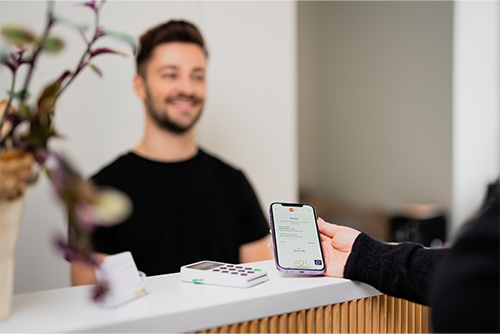
Take your phone close to the payment terminal that supports contactless payment.
Wait for the payment terminal to confirm the payment. You are ready!
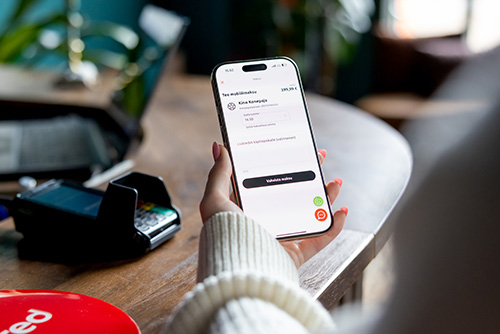
Open the Edenred app and select which benefit you want to use for payment.
Choose Make a Payment and search for your desired location.
Enter the amount to be paid, specify the service you are purchasing in the additional information field if desired, and confirm the payment.
If the benefit does not cover the entire amount of the service, pay the remaining balance using another payment method. Make sure to check the instructions with the service provider.
If you are making the payment on-site, show the receipt to the cashier, and you’re all set!
Open the Edenred app and log in.
Access the benefit page of the card you want to add to Google Wallet (each payment card must be added separately).
Click on Add to Google Wallet.
Confirm the transaction using biometric identification or your PIN.
Accept the terms of use, and you're ready to go!
Ensure that NFC functionality is enabled in your phone's settings.
Open the Wallet app on your Android device.
Select Add to Wallet, Payment Card, and then Add New Credit or Debit Card (each card must be added separately).
Manually enter the card details or scan the physical card's information with the camera.
You can find the information for both your virtual and physical cards in the Edenred app.
Follow the instructions and accept the terms of use.
Google will send you an activation code via email. You can also get the code by calling our customer service.
Enter the code, and you're all set!
Make sure you're signed in to your Google account and that your phone's NFC functionality is enabled.
Open the Google Pay app and choose which card you are using to make the payment.
If you have set the Edenred card as your primary payment card, you do not need to open the application separately
Remember to note which benefit you are paying with.
Open the phone and take your phone close to the payment terminal that supports contactless payment.
When the local payment limit is exceeded, the phone will ask you for additional identification.
Wait for the payment terminal to confirm the payment. You are ready!
The beneficiary opens the Edenred app and selects Make a Payment from their chosen benefit page.
Note! The payment card for that benefit must be activated for the mobile payment to be successful.
The beneficiary enters the amount to be paid into the app, specifies the service they are purchasing in the additional information field if desired, and confirms the payment.
If the benefit does not cover the entire amount for the service, the remaining balance must be paid using another payment method.
If the payment is made on-site, the beneficiary shows the receipt displayed on the screen to the cashier. Ensure that the receipt is active.
If the service is not paid on-site or if it is a remote service, inform the beneficiary in advance how you would like them to proceed.
For example, many service providers advise the beneficiary to send a screenshot of the receipt. This way, they know that the service has been paid for.
If you are unsure how mobile payments should be entered into your cash register system, or if you have challenges with the cash register system, please contact the provider of the cash register program.
The automatic repeat function for the lunch benefit ensures that your lunch balance is loaded into your account automatically every month according to your settings.
Using the repeat function requires that the lunch benefit is loaded into your account based on load requests, and your employer has allowed this feature.
Activate the repeat function in the Edenred app by clicking on Lounari and then Request Top-up. This function can be found at the bottom of the loading page.
Set your desired load settings and activate the repeat function. When you send a load request, the repeat function will also be activated, and balances will be loaded each month according to those settings.
You can also disable the recurring function. Read more detailed instructions here.
Note! If you make changes to the settings after your employer has already approved your request, the changes will take effect only the following month.
The beneficiary double-clicks the side or home button on their device and verifies it using either fingerprint recognition or Face ID.
The beneficiary holds their phone close to the payment terminal that supports contactless payments.
The payment is complete when the payment terminal confirms it as successful.
The payment will be processed as a card payment by your payment processor within 24–48 hours of the transaction.
If necessary, the beneficiary opens the Google Pay app on their phone and selects the card they want to use for the payment.
If the card for the service being purchased is set as the default payment method, the beneficiary simply needs to hold their phone close to the contactless payment terminal.
If the contactless limit is exceeded, the phone will request additional authentication.
The payment is complete when the payment terminal confirms it as successful.
The payment will be processed as a card payment by your payment processor within 24–48 hours of the transaction.
If you are part of the Edenred network but have not registered for the Merchant portal, you can easily do so via the link below!
After registration, you will be able to receive Edenred Pay mobile payments and reimbursements, as well as keep your information up to date.
All your eligible benefits can be found in the Edenred app. Once you receive your new card, you can activate it from the home screen or by navigating to the benefit page.
Open the Edenred app and select the benefit associated with the card you want to activate.
Choose Activate.
Enter the serial number of your card.
The serial number for a physical card can be found on the back of the card.
The serial number for a virtual card can be found in the email sent by Edenred.
Also, enter your social security number.
Your personal benefit is linked to your social security number by your employer.
Your card is now activated!
The price consists of the monthly fee and the loading fee. Monthly fee is 0,99 € / month / employee.
| Employee benefit | Benefit balance loading fee |
| Lounari | 2,95 % |
| Virike | 5,20 % |
| Massage | 5,20 % |
| Transport | 5,20 % |
| Wellbeing | 5,20 % |
You can find a more detailed price list here.
Service providers belonging to Edenred's wellbeing network must be a healthcare professional registered to Valvira.
Acupuncture
Specialist Doctor
Physiotherapist
Gynecologist
Dentist
Dermatologist
Podiatrist
Cardiologist
Chiropractor
Ear and/or Throat Doctor
Naprapath
Neurologist
Orthopedist
Osteopath
Psychologist or Psychotherapist
Psychiatrist
Substance Abuse Rehabilitation
Radiologist
Nutritionist and Dietitian
X-ray Doctor
Ophthalmologist
Public Health Nurse
Occupational Therapist
Occupational Hygiene Specialist
Experts in Occupational Vision, Nutrition, and Speech Therapy
Urologist
General Practitioner
Vaccinations
The beneficiary double-clicks the side or home button on their device and verifies it using either fingerprint recognition or Face ID.
The beneficiary holds their phone close to the payment terminal that supports contactless payments.
The payment is complete when the payment terminal confirms it as successful.
The payment will be processed as a card payment by your payment processor within 24–48 hours of the transaction.
If necessary, the beneficiary opens the Google Pay app on their phone and selects the card they want to use for the payment.
If the card for the service being purchased is set as the default payment method, the beneficiary simply needs to hold their phone close to the contactless payment terminal.
If the contactless limit is exceeded, the phone will request additional authentication.
The payment is complete when the payment terminal confirms it as successful.
The payment will be processed as a card payment by your payment processor within 24–48 hours of the transaction.
Popup Content
Popup Content